

Downloading ebooks and using them via Linux is a diabolically difficult, stupid and possibly legally dangerous situation. You'd be forgiven for thinking that the reason is merely the reality that desktop Linux users are the one percenters and that the system is biased towards Windows and OSX users, but it's actually more insidious than that – copyright has sabotaged any kind of simplicity here.
This is a joke. Only in the land of intellectual property law (and possibly high end encryption) does one find that the world is actually getting more complicated, rather than simpler.
I've just spent the best part of the last couple of days attempting to try to load my computer with the usual fixes to ensure that my computer can have the DRM cracked off it, which is necessary for using Linux with DRM-protected ebooks. It's a time-consuming and wasteful job, and it's made worse by the fact that I totally fluked it the last couple of times and then didn't write the steps down. Oh sure, there are plenty of web pages out there that have the steps, but no one seems to have the order right.
Thus, there was a great deal of foul language as I faced error after error and glitch after glitch. In the end, it's still a time consuming job, but just getting each of these wretched steps done was an effort in itself. This time, I'm writing the little catches down, at least for me, if no one else.
So please allow me to show you the right way to go about ensuring that you're in a position to get your freshly purchased ebook in a fit state to read if you are using a Linux PC.
Note that for this exercise, I'm using Linux Mint 14 (Nadia) XFCE. Also, I'm assuming that the ebook that you purchased was DRM protected by Adobe's Digital Editions software and is in the .epub format. Most lending libraries use the .epub format for their ebooks, so if you plan on using a library, this will help. Bad luck if you've got a Kindle: none of this will help you.
Note also that this cracks DRM off files. This is necessary for fair use, such as in this instance, but can also potentially be misused. Misuse is very much illegal. Don't misuse this - just imagine what kind of moronic lengths publishers will go to next if they aren't getting paid. Goodness knows, most of their authors aren't getting anything.
Also note that this is just one method, possibly even the long method. I may blog in the future about Calibre plugins which are, in my opinion, way easier. But this is well and truly worth knowing.
Edit (21/01/2012): The method using Calibre plugins may be found here.
1. Install Calibre
Calibre is still the best ebook library manager, and you will need it for this. Make sure you get this installed – if you haven't done so yet, copy and paste this into your terminal:sudo apt-get install calibre
2. Install Wine with a useful front end
Wine is a hateful program which has been solely designed to give me a nervous breakdown. I've hated it ever since I started using Linux. Nevertheless, there are easier ways to use this thing than liaising with the program directly. Like a good front end. So the first thing to do is ensure that you have a decent front end on it. I prefer PlayOnLinux, myself. I'm using version 4.1.1 of that but I think that this is one of the rare times that this could be unimportant. Of course, I say this now...I'm going to assume that you're using PlayOnLinux all the way through this, but you could be using a variety of front ends, like Winetricks or something else. Or not.
If you're not using a front end, ensure that you are using nothing after Wine 1.3, because this will simply not work, otherwise. PlayOnLinux will allow you to select versions, but we'll get to that later.
To install Play On Linux and Winetricks, enter this into your terminal:
sudo apt-get install playonlinux winetricks
If you haven't already got Wine installed, this will install it for you, however for users of Linux Mint 14 (or any recent version of other distros) you will end up with Wine 1.4 by default.
Again, we'll look into version 1.3 of Wine a little later on.
3. Download the Windows version of Adobe Digital Editions 1.7
Folks, I cannot impress enough on you that you need to use specific versions of the applications that I am mentioning in this post. Get this wrong, and you end up like me, stuffing around looking for glitches that aren't there, installing patches that aren't needed and generally getting very ornery.Adobe have moved on to version 2.0, now. It doesn't seem to like Wine much. Goodness knows that Adobe doesn't really care for Linux users terribly much, either. So do a search on Google for where you can download version 1.7, or click on the link below, which is one that I found.
Click here to download Adobe Digital Editions 1.7 for Windows
Right-click on the "Free download" link and save it somewhere where you can get to it when you need it. Your Downloads folder is quite fine. If you use the link above, note that it comes with the usual sponsored links and toolbars which you will have to de-select upon installation.
4. Install Adobe Digital Editions 1.7 in Wine
Again, I'm using PlayOnLinux, and you might like to do something else, but here it is, step by bleeding step.(a) Start up PlayOnLinux.
(b) Click on the big, friendly + button with "Install" written underneath it.
(c) You will see the PlayOnLinux install menu. Move your eyes all the way down to the bottom left corner and click on "Install a non-listed program"
(d) You are now in the manual installation wizard. Click "Next"

(e) Select the "Install the program in a new virtual drive" and click "Next"

(f) Give your new drive a name. Something that you will remember that is easy not to misspell - I used "ADE" for Adobe Digital Editions. Click "Next"
(g) IMPORTANT: Remember how I said to use Wine 1.3, not 1.4 or later? Here's where you ensure that your new virtual drive is running on that. Select "Use another version of Wine" and click "Next"

(h) If you don't have version 1.3 available to you here, select "System" and speed through with the "Next" button. I'll cover off on an additional method for changing versions of Wine later.
(i) Wait for the virtual drive to be created - you shouldn't need to click on "Next" this time. You'll see some Wine dialogues pop up along the way. Browse for your Adobe Digital Editions 1.7 install file to run and then click "Next".
(j) Another Wine pop up will ask you to accept the terms and conditions of the download and install. Click "Next" within the dialogue. The next screen is a sponsored toolbar, and you'll need to wait until it loads fully or you will get delayed. Deselect everything and select "Install".
(k) It will have another bite at the cherry for installing the toolbar. Click "Cancel" only to the small pop up that appears next. If the small pop up doesn't appear, you've accidentally selected something on the previous screen. Never mind.
(l) Click "Next", then click "Install", then "Close". You should then be prompted with the licence agreement for Adobe Digital Editions. Click "I Agree". Adobe Digital Editions should then set itself up. You should be able to navigate your way through this bit, but read each bit carefully.
Edit (21/01/2012): Reader Arc has pointed out that if you deselect "make start menu item", PlayOnLinux has a cow. Don't deselect that. It doesn't reaqlly matter anyway, because Wine doesn't have a Start menu. (Neither does Windows 8, either, for that matter!)
(m) Close Digital Editions and then click "Close". PlayOnLinux will then finish installation. This may take some time, and is one of the annoying things that occupied my time. When it finishes, ensure that you select "digitaleditions.exe" and click "Next". Things get painful if you don't.

(n) Name it something. I strongly suggest "Adobe Digital Editions 1.7". Click "Next"
(o) Select "I don't want to make another shortcut" and click "Next". You're done.
5. Alternate step - Change versions of Wine
Remember in (h) in the previous step, I mentioned that if you didn't have the opportunity to switch your ADE virtual drive to Wine 1.3, we'd discuss what you could do later? Well, here we are.(a) In your main PlayOnLinux screen, click on the cog button Configure.
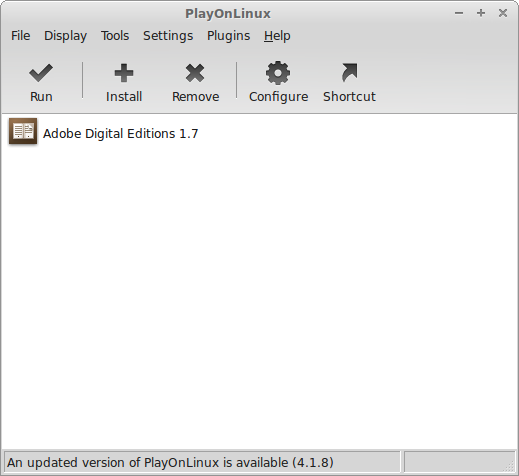
(b) Over on the left, ensure that your ADE drive (or whatever you named your virtual drive) is selected, and then click on the + button nest to Wine version (in the General tab):

(c) Another screen will pop up. Select an option (1.3.37 is recommended) from the Available Wine versions, and click on the > button. An installer will take you through the steps. And then you'll be done.
Click on the x-boxes at the top of each screen when you're done until you are back at the PlayOnLinux configuration screen. Select your newly installed version of Wine (1.3.37) and then close out of that screen.
It's now time to install Python.
6. Download the Python stuff
More correctly, you need Python 2.6 (for Windows), PyCrypto 2.1 (for Windows) and two Python scripts that are in the following set:Click here to download these.
Right click and save into your Downloads folder, and then open it up and extract the contents into a nice, new, clearly labelled folder that you are going to remember. We'll come to these in the next few steps.
7. Install Python 2.6 in Wine
Follow the same steps as in step 4 to install Python in Wine from PlayOnLinux, but do the following:- Ensure that "Install a program in a new virtual drive" is selected;
- Type "ADE" (or the name of your virtual drive) exactly with NO TYPOS;
- IMPORTANT: Select 1.3.37 as your version of Wine to run;
- Select the python-2.6.2.msi file from wherever it was that you unzipped the files from Step 6 into;
- Select the defaults for everything through the Wine screens;
- Select "python.exe" to make a shortcut and name it "Python 2.6"; and
- Finish by not making another shortcut.
8. Run PyCrypto in your new virtual Wine drive
Click on Configure in your PlayOnLinux main screen. Ensure that your ADE drive is selected and then go into the Miscellaneous tab. Select "Run a .exe file in this virtual drive":
Select the pycrypto-2.1.0.win32-py2.6.exe file from wherever it was that you unzipped the files from Step 6 into, click "Next" to everything, and you're done!
9. Set file associations
This has to be done eventually, so you may as well do it now.From the PlayOnLinux main screen, go up to Settings and select "File Associations" from the drop down menu:

You'll be met by a new screen, the Settings screen and you should be in the File Associations tab. Select "New" down on the bottom left and enter ".pyw" as the file extension before clicking "OK".
You will see .pyw appear in a list. Select .pyw and then, from the drop down menu that appears at the bottom, select Python. And then hit "Apply". You're done.
You'll need to restart PlayOnLinux. so do that and then exit again. It's time for the fun part.
10. Buy a DRM-protected ebook
I used Angus & Robertson online for this, but presuming that your online bookstore sells in the .epub format, you will need something from their stock to test this out on.Note, I haven't included Barnes & Noble who use a different type of DRM encryption - I may cover theirs in a future post.
After you've selected your ebook and "purchased" it, you should be presented with an .acsm link. Right-click and select "Save as" - I find the .acsm file just that easier to work with once downloaded.
11. Download file to Adobe Digital Editions
Easy step this - open Digital Editions from PlayOnLinux and drag and drop your .acsm file into it. Digital editions will do the rest, as well as saving a copy of the "decrypted" file in a folder in your home folder, called My Digital Editions.Simple? It's now time to run the Python scripts.
12. Run the Python scripts
The set that you downloaded in Step 6 included two Python scripts that now should be run in Wine. Open a terminal and navigate your way into the folder that contains your Python scripts.Start with the ineptkey script. Copy and paste this into your terminal:
playonlinux ineptkey.pyw
You'll see a few things happen, and even a couple of errors. Hopefully, though, none of these should be fatal. If all goes well, you should be met by this message:

Woo hoo!
But where's the key? Go into your virtual ADE drive, in the drive_c/Python26 folder and you should be able to find a file named "adeptkey.der". Copy and past this into both the folder where you kept Python, PyCrypto and the Python scripts, and also into your .config/calibre
Edit (21/01/2012): Reader Arc has pointed out that the adeptkey.der file needs to go into ~/.config/calibre, not the /plugins folder that is within that. I did both and didn't notice.
Now, the ineptepub script. It may be spelled "aineptepub.pyw" or "ineptepub.pyw" but either way, it's the script that will administer the coup de grace to your DRM-protected file.
Before you do that, go into your My Digital Editions folder, locate the .epub file that you just "decrypted" with digital editions and copy it. Go back to your Books folder and create two new folders in that. I call one "Dirty" and one "Clean". Paste the .epub file that you copied into the Dirty folder.
You now should start a new terminal session, again, ensuring that you've navigated to the folder containing the Python scripts, and enter this:
playonlinux aineptepub.pyw
You should be met with a window with three fields. Your adeptkey.der file should already be in the first field, as it's in the same folder as you are.

Browse to your Dirty folder for the second field (Input path), and to the Clean folder for the third field (Output path) and click on Decrypt whole directory. You can do this with a whole bunch of ebooks that Digital Editions has left for you.
Voila! Mission accomplished, and only one more thing left to do.
13. Add file to your Calibre library
You can do this a number of ways. You can add a file using the buttons in Calibre. You can drag or drop the file, or you can do it from the command line as follows.Open a terminal, navigate to your Clean folder and type:
calibredb add filename.epub
You are now free to move the file on to your e-reader in Calibre.
Happy? Good, I'm exhausted. Happy reading.


53 comments:
Hey, thanks a bunch for your detailed instructions! I now have my first-ever ebook unencumbered by naughty DRM, which is good because i need to have it read in a fortnight.
I probably would have given up in frustration without your help.
One small thing, though, playonlinux had it's cylon-eye worm thing going on for literally hours while it was performing the installation. I had to cancel it.
This was because I unchecked 'install start menu shortcut' on ADE's installation menu.
Thought it would be worth making that clear.
it looks like the directory to copy adeptkey.der to is actually ~/.config/calibre
Thanks for that, Arc. I normally just clicked straight through that screen, knowing full well that it was selecting something that wasn't ever going to appear.
I'll try to silp an edit in shortly.
Also, that's interesting about the folder to paste adaptkey.der into I must have pasted mine in there by accident, because I can see it's there, too. I'll edit to make this clear, too.
Thanks a bundle for your help, Arc.
Thank you, thank you, thank you, thank you, thank you, thank you, thank you, thank you, from the bottom of my newbie heart.
Glad you liked it!
This is awesome! Thanks so much. One thing though was that on Ubuntu 13 the initial wine installation was messed up. I had to reinstall it with
sudo add-apt-repository ppa:ubuntu-wine/ppa
sudo apt-get update
sudo apt-get install wine1.5
sudo apt-get install winetricks
Thanks a lot!
It worked with Ubuntu 13.10 and Kobo reader.
Trying this on Suse 13.1 and stuck in "8. Run PyCrypto in your new virtual Wine drive" as PlayOnLinux (3.8.12-4.2) has no configure button anywhere.
Wow, no configure button anywhere? OK, PLayOnLinux might have changed a little since I wrote this, but I haven't seen that and I'm running version 4.2.1. Nothing in the dropdown menus?
Stefan, I've had a look at some old screenshots of PlayOnLinux 3.8 (what you're running) and can't find a config button in any of them.
It may be this point where you start again after updating your version of PlayOnLinux to at least 4.1, unless there's a feature that allows you to run that script in your ADE (or whatever you've called it) virtual drive.
I'm sorry that I can't be more help than that.
Wow, glad I stumbled across this page. Gonna allot myself a few days to get through it. Upsetting that it takes such a painstaking process, but I'm sick of watching my library ebooks expire.
One question: is it necessary to run ADE in PlayOnLinux, or is it all right in this process to just use Wine? Because at the moment ADE 1.7 is installed with Wine on my computer (which is Mint 16 XFCE 32-bit).
Thanks!
Amat, it really doesn't matter if you prefer to run Wine without a frontend, such as PlayOnLinux. What is important, is that you need to be running Wine 1.3.
Also, I've never tried this on library e-books, only books that I've purchased myself. But I presume that it would work.
Thank you. With some minor tweaking and an update to Play On Linux, I got this to run on Elementary OS Luna. I'm now able to download purchased and library books directly to my Nook Simple Touch. So your readers know, you can copy the clean versions of your books (*.jb.decrypted.epub) directly to your Nook using the ubuntu terminal or file manager. They'll work just fine. As you mentioned, you can also import them to Calibre, which I prefer, since the UI makes it much easier to manage my books.
ADE is the first Windows program I really needed since switching to Linux (Mint16 Cinnamon), but I couldn't get in running in Wine.
Thanks for explaining how to set it up in PlayOnLinux !!
The ADE 1.7 download from here didn't work (corrupted?) so I got a version 1.7.2 from somewhere and it works great.
The download link for Adobe Digital Editions 1.7.1 seems to download an installer instead of the actual file. The installer is crashing when I try to run it in Wine. Instead you can download the version directly from Adobe: http://www.adobe.com/support/digitaleditions/ts/documents/kb403051/digitaleditions1x7x1.exe
Thanks Anonymous. I'll get an edit done to change this shortly.
Cheers.
Is this still true about needing Wine 1.3? I can't get 1.3 to install on Gentoo. Current version is 1.6. (And maybe recent changes in DRM have made this method obsolete anyway?)
>>Wine is a hateful program which has been solely designed to give me a nervous breakdown. I've hated it ever since I started using Linux.
+5 Same thing here.
Great tutorial, thank you very much!!
Thank you very much for this tutorial. For those wondering how to remove DRM from a pdf, I found this script. Follow all Dikkii's tutorial but run ineptpdf.pyw instead of aineptepub.pyw.
http://unavowed.vexillium.org/pub/util/ineptpdf.pyw
Cheers!
i am soooo grateful for this post. thanks so much. you rock!
God damn,
this step-by-step manual is incredible. I really don't have a big understanding of Linux, commands and terminal but by following your description it worked. It really worked with my first ever bought ebook. Thank you a thousand times. You sacrificed your time for the good of many people out there.
Only one thing: I couldn't find ~/.config/calibre folder. But this didn't effect the dirty-to-clean ebook transformation ;-)
Thanks for your very detailed tutorial, must of taken ages to make!
I am having a problem at step 12, running the python scripts. I am using an acer c720 chromebook with crouton running ubuntu 14.04 with unity desktop. Im fairly new to the linux world.
The error im having in the terminal is refering to a winebuilder.exe and error is complaining that file is missing, full log here:
(trusty)steve@localhost:~$ cd /home/steve/Downloads/Python
(trusty)steve@localhost:~/Downloads/Python$ playonlinux ineptkey.pyw
Looking for python... 2.7.6 - selected
(python:17029): Gtk-WARNING **: Unable to locate theme engine in module_path: "pixmap",
(python:17029): Gtk-WARNING **: Unable to locate theme engine in module_path: "pixmap",
(python:17029): Gtk-WARNING **: Unable to locate theme engine in module_path: "pixmap",
[main] Message: PlayOnLinux (4.2.2) is starting
[clean_tmp] Message: PlayOnLinux seems to be already running. Don't cleaning tmp
[POL_System_CheckFS] Message: Checking filesystem for /home/steve/.PlayOnLinux/
[FS_Check] Warning: The following file is located on a noexec mounted filesystem.
It might prevent wine from working
/home/steve/.PlayOnLinux/
[main] Message: Filesystem is compatible
wine: cannot find L"C:\\windows\\system32\\winemenubuilder.exe"
err:wineboot:ProcessRunKeys Error running cmd L"C:\\windows\\system32\\winemenubuilder.exe -a -r" (2)
process 17257: Applications must not close shared connections - see dbus_connection_close() docs. This is a bug in the application.
(trusty)steve@localhost:~/Downloads/Python$ [POL_Wine] Message: ** Filesystem checks disabled **
[POL_Wine] Message: Running wine-1.3.37 python_icon.exe Z:\home\steve\Downloads\Python\ineptkey.pyw (Working directory : /home/steve/.PlayOnLinux/wineprefix/ADE/drive_c/users/steve/Application Data/Microsoft/Installer/{24AAB420-4E30-4496-9739-3E216F3DE6AE})
[POL_Wine] Message: Notice: PlayOnLinux deliberately disables winemenubuilder. See http://www.playonlinux.com/fr/page-26-Winemenubuilder.html
[POL_Wine] Message: Wine return: 0
Some help would be greatly appricated, thanks!
To update I have made no more progress but tried a few more things:
1 https://www.playonlinux.com/en/page-26-Winemenubuilder.html which is linked in the log I posted I have tried adding the line export WINEDLLOVERRIDES="" to $HOME/.PlayOnLinux/configurations/custom
2 an update to this post http://dikkiisdiatribe.blogspot.co.uk/2013/01/alternate-method-linux-calibre-e-books.html but I still cant get the command playonlinux ineptkey.pyw to return anything more than the log I posted already
3 I tried installing python to my system32 folder in the ADE virtual drive http://forum.linuxmint.com/viewtopic.php?f=90&t=173085
4 tried using virtual box to emulate a windows xp OS but that wont work and has a fatal error which says I require a kernel module which I don't have
I am pretty much right out of ideas right now, without wiping chrome os and reinstall only a linux distro which I would rather not got to the lengths required which involves messing around with kernel stuff to get the touch pad etc to work.
I am somewhat confused because I don't beleive the short coming is that its because I'm using a chromebook, I have a full ubuntu 14.04 distro installed, everything else works. I can play steam games (half life series and portal to name a few I completed on this very same computor), I can use fastboot to flash my android devices etc. Its not because its under powered as this particular one has an i3 cpu and 4 gigs of ram.
I just simply cant see how I can proceed currently without wiping my main os and using ubuntu full time which as I said id rather not do, if anyone has something id love to hear from you and I do realise this an old thread but its the best tutorial I have found by a long way, I belevie this can work for me Im just not sure how
Hey, try to make a shortcut to your python installation from the virtual drive, and then use 'debug' on it to see a problem, mine got confused with the paths as I had python27 installed first. you can use the -configure, uninstaller to uninstall python and cryptopython and start over. use the debugger for hints on whats wrong..
Super! Great! Many thanks! I've tried this several times, but following your strict guide did the trick.
Hello and thank you very much for such a wonderful step-by-step guide!
I bought an e-book secured with Adobe DRM some five months ago and couldn't find any way to read it on my laptop with Linux Mint... Being a girl who does not really understand much of Linux except for the basics (still struggling with the terminal sometimes), I almost gave up, but then I decided to give it a last shot today when I found your detailed tutorial. Also I had some problems with the step 12 and running the first script, because terminal was constantly giving me an error message. But then I found a way around it by copying the script files to other locations and it miraculously worked. The entire think took me about two hours, but now I can finally read that bloody book. :)
Hi! Thank you very much for your guide. This helped me very much. I hate DRM, free knowledge for everyone!
So, I used your method couple of months ago and it worked fine, but as of october 2015, ADE forces me to download an update. I found this link which includes the 1.7.2 version and followed all your installation steps and it worked fine.
http://www.epubsoft.com/soft/adobe-digital-editions.html
So, I suggest to update your guide to link to a ADE 1.7.2 version instead of 1.7.1.
The archive file downloadable with the link includes a file "Adobe DRM Removal.msi" but I haven't tried it.
Thanks again for your guide!
Cheers,
Hubert
Aha, almost-but no cigar. Everything seems to install smoothly (of course, the version of Wine I am running is 1.7; others are not available although I suppose I can download them and compile from source...), but when I attempt to run the final script, I get the "problem: decrypting session key" message... :(
worked just great, thank you so much! (debian jessie)
I have just re-installed this sw in Ubuntu 15.10 and ran into a problem with WINE 1.3.37 ,so I installed the software under the latest WINE version and have found it works fine.So maybe 1.3.37 is not needed after all.
Likewise, it works fine for me with WINE 1.6.2 under Debian GNU/Linux. Likely, any WINE version will work nowadays.
Also, the restriction to an old version of pycrypto is unnecessary if one change is made to the ineptkey.py script. (The latest pycrypto has a regression which causes it to give this error with ineptkey.py version 5: "ValueError: IV must be 16 bytes long".) The solution is to change line 278 to specify the IV as a keyword argument, like so:
userkey = AES.new(keykey, AES.MODE_CBC, IV=16*"\x00").decrypt(userkey)
Unfortunately, the author of ineptkey.py (i♥cabbages) hasn't made a blog post since 2010, so it seems unlikely that an official version 5.1 will be released with this fix.
With the help of your step-by-step instructions I have finally managed to get an EPUB onto a Kobo - phew! So many thanks are in order!
I have two questions, if that is OK:
1. I aim to use this mainly for library books - can I skip/automate any of the steps, please?
2. Do I need to translate to PDF to get an EPUB onto a Kobo, does anyone know?
Many thanks for any help, and a great article!
Hi folks, I am having trouble to upload .acsm-files into the Adobe Digital Edition 1.7. It doesn't give me the choice to select .acsm but only *.pdf and *.epub. It worked fine in the past. Any idea what is going wrong?
Drag and drop works for me.
Cheers,
It works on kubuntu 16.04. Great!!
Thank you a lot!
@ Volk W.
I am having the same problem!
Just installed in Ubuntu 16.10 using Wine system version (wine-1.8.5)
Working fine.
The link for the script files seems to be dead does anyone have a copy of them?
Oh my goodness! This is absolutely fantastic. I was going to cave and buy a new Windows laptop before I came across your excellent guide. Now I can keep my linux machine. Thank you so much for this!
More than 4 years later and you are still preserving the sanity of many other people like myself. You are amazing, here is a virtual hug.
Many thanks for these instructions. With your detailed notes I've just successfully decrypted my first epub file on openSuSE 42.1.
Just in case anyone else is trying to do this under openSuSE I would
like to point out 2 additional problems I ran into:
1. There's a problem with the pulseaudio libs. When I tried to run ADE in playonlinux, I got the follwing error:
ALSA lib dlmisc.c:254:(snd1_dlobj_cache_get) Cannot open shared library /usr/lib/alsa-lib/libasound_module_pcm_pulse.so
Inconsistency detected by ld.so: dl-close.c: 762: _dl_close: Assertion `map->l_init_called' failed!
As a workaround I've now added the following lines to ~/.asoundrc
pcm.!default {
type plug
slave.pcm {
@func getenv
vars [ ALSAPCM ]
default "hw:1,0"
}
}
This will let ALSA use the audio device without going through pulseaudio.
hw:1,0 depends of course on the hardware device (see aplay -l).
2. ineptepub.pyw failed with an odd error, something like:
Error in: .epub File name in directory "crypticname"
I had to unzip my epub file and then re-zip it with something like:
zip -rX rezipped.epub mimetype META-INF/ OEBPS/
Then finally ineptepub.pyw worked.
Thanks again for your fine instructions.
Cheers
Step 6's link is dead. I can find Python and PyCrypto, but I have no idea what the two scripts are.
Hi Jamie,
I'll get it updated at some point, but try these from Anonymous' comment of 13 December 2016:
https://www.python.org/ftp/python/2.6.2/python-2.6.2.msi
And
http://www.voidspace.org.uk/downloads/pycrypto-2.1.0.win32-py2.6.zip
They should work.
Also, Anonymous' other links from 13 December 2016 also appear to work:
http://web.archive.org/web/20141027022513/http://blog.greenpirate.org/public/ineptepub.pyw
And
http://web.archive.org/web/20150103085348/http://blog.greenpirate.org/public/ineptkey.pyw
Good luck!
Thanks Admin Amazing Post Keep UpDate.Thank You.
Top 10 Most Popular Internet Marketing Vip SEO Tool and Website Traffic Bot Software Free Download Online Please Visit Our Website
http://best-premium-seo-tools.blogspot.com
OK so now it's 2018 and I'm running Ubuntu 18.04
The previous methods of installing Adobe Digital Editions 1.7 wouldn't result in a working application for me.And Play on Linux didn't seem to create virtual drives correctly with the previous procedures.
But all is not lost.
I did eventually get a working ADE 4.0 installed in a very trial and error type procedure.I can't guarantee it will work for everyone.I used clues from the two web pages below: https://patdavid.net/2018/05/installing-adobe-digital-editions-on-linux-with-wine/
https://appdb.winehq.org/objectManager.php?sClass=version&iId=33276
1. Because I had trouble getting POL to create a virtual drive for ADE ,I first used the POL menu ,section "Development" to install NotePad Plus Plus - a small text editor.This created a virtual drive named Notepadplusplus into which I installed ADE 4.0 down loaded from: https://filehippo.com/download_adobe_digital_editions/61913/
First ,though, I went to POL > Configure > Install Components tab and installed dotnet40 and Microsoft Core Fonts - making sure Notepadplusplus drive was selected in the left panel of the POL Configuration window.
In the POL Configuration window > Wine tab I selected the Configure Wine button and in the popup window changed Windows Version from Windows 7 to Windows XP.
2. I then followed Dikkii's procedure from step 7 with a major difference.First to install the ADE 4.0 I downloaded earlier in the Notepadplusplus drive.
3. And then followed with step 7 again exactly as laid out by Dikkii to install the Python stuff.
An alternative to step 2 might be to install Adobe Digital Editions 4.5 from the POL install menu section "Office" either letting POL download the file itself or if that fails, disconnect from the internet and browse to the Adobe Digital Editions 4.0 you downloaded from FileHippo.
I know this is very haphazard but I tried about eight different ways to install this and I think this was the process that worked.
As an addendum to my post above: I did not install a different version of Wine,just used the system version.
Hey bro! You know what? You've solved all my issues related to DRM and I love you for that, mate. Trust me, I was so bothered by the DRM while playing the Ebooks on the Linux, but you kinda solved all my problems. Thanks.
Great tutorial! because Your tutorial is damn informative Jodi. I never knew that How to get round DRM issues with e-books in linux. Thank God I saw this post before getting insulted at a public place. thanks for sharing.Zemana Promo Codes
It's now 2023 do these instructions still work. I'm getting a problem decrypting session key error.
Post a Comment